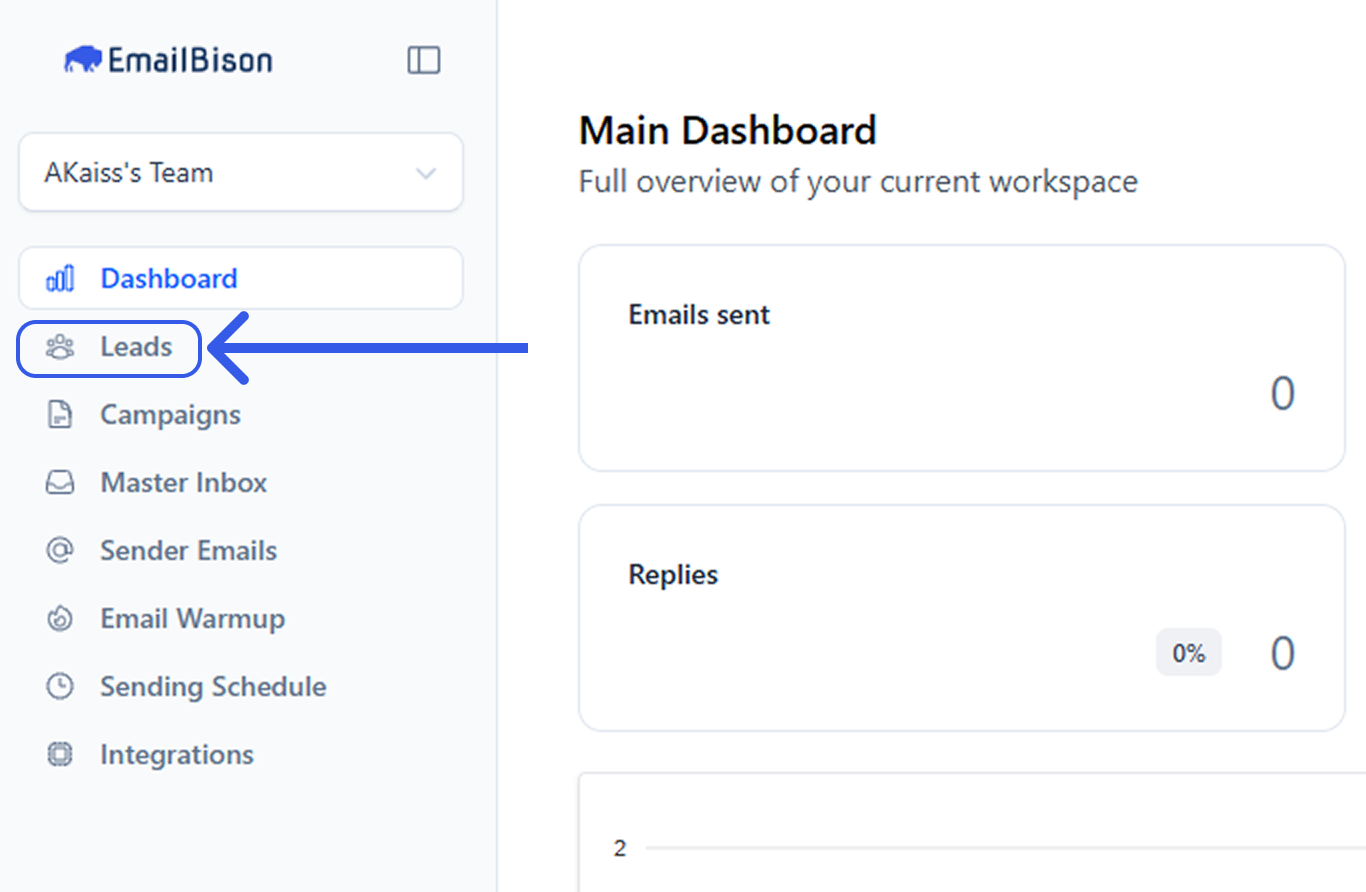
Select the leads page on the left sidebar.
Click the “Toggle Filters” button on the right side of the leads page. This will expand the filter and search panel that contains all available filters.

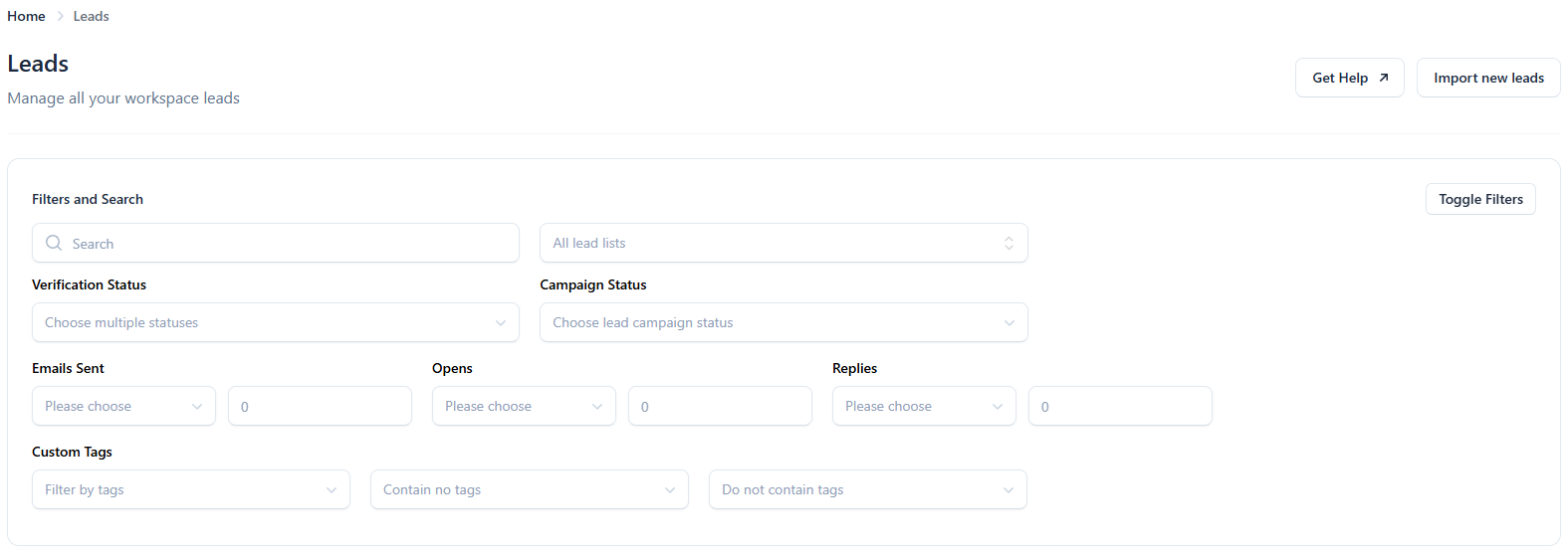
Lead filters enable segmentation and management of leads based on status, engagement metrics, and metadata (tags), making reporting, lead management, and targeting easier.
Each section within the filter panel lets you narrow your lead list based on specific criteria:
Search Filter

Use the general search bar at the top of the panel to quickly find lead by name, email, or keyword. If you can’t find what you’re looking for try using quotations around your search, e.g. “lead@company.com”.
Lead List Filter

This dropdown allows you to filter leads by lead list. You’ll see all the lead lists that you or your team have uploaded or created.
Verification Status Filter
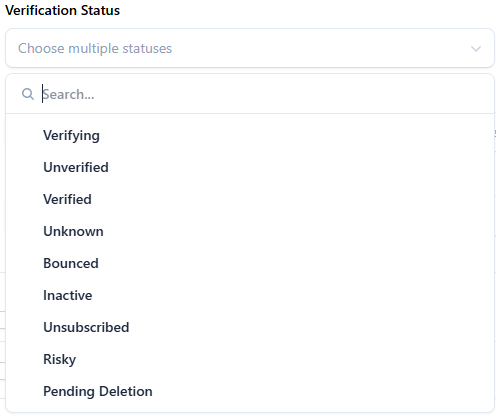
This dropdown allows you to filter leads based on their email verification state. Which is helpful when preparing to send or identifying leads that need cleanup.
Campaign Status Filter
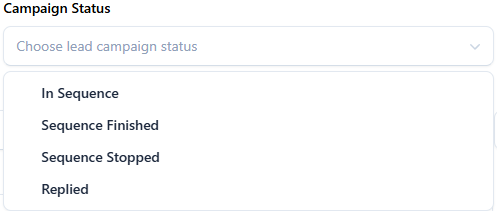
This dropdown allows you to filter leads by their status within your campaigns, which is useful when identifying cold leads or leads who have completed sequences.
Emails Sent Filter
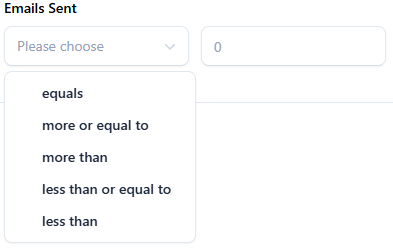
This dropdown allows you to filter leads based on how many emails they have received. For example, to find leads who have received at least 3 emails, use “More than or equal to” and enter “3”.
Opens Filter
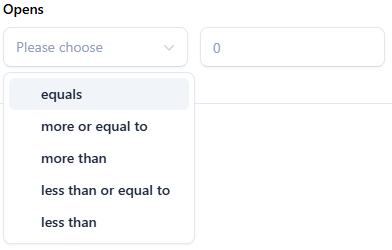
This dropdown allows you to filter leads based on how many emails they have opened. For example, to find leads who have opened at least 3 emails, use “More than or equal to” and enter “3”.
Replies Filter
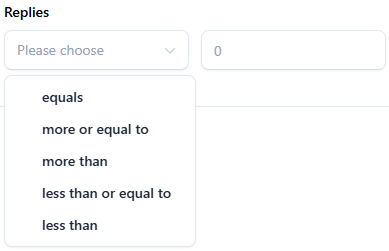
This dropdown allows you to filter leads based on the number of replies received from each lead. This is especially helpful if you want to exclude people who already responded. For example, to find leads who have replied to at least 3 emails, use “More than or equal to” and enter “3”.
Custom Tags Filter

These dropdowns allow you to filter leads by predefined or manually added tags. You may either filter by leads with specific tags, filter by leads containing no tags, or by leads not containing specific tags. Tags can reflect engagement, email client, or any other lead characteristic relevant to your workflow.
