Click “Toggle Lead Filters” on the right-hand side of the Leads page. This will open up a bar that contains all available filters.
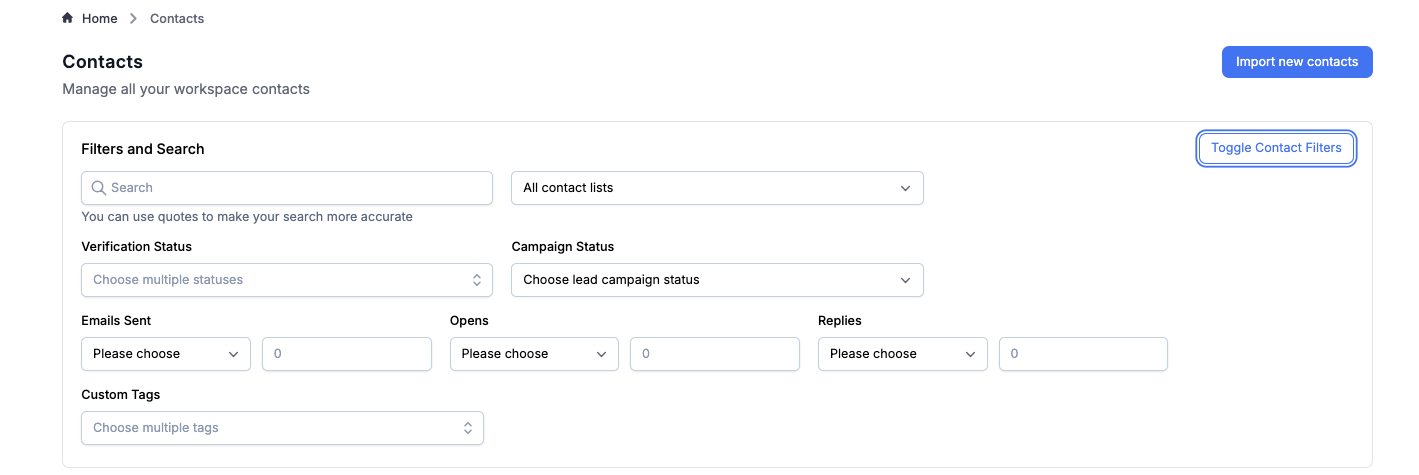
The Lead Filters feature on the Leads page allows you to segment and manage your leads with more precision. These filters help you quickly identify specific lead groups based on engagement, status, or metadata, making list cleanup, reporting, and targeting much easier.
Each section within the filter panel lets you narrow your lead list based on specific criteria:
Search & Filter Bar
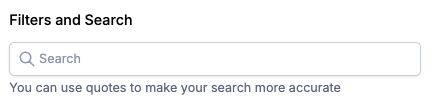
Use the general search bar at the top of the panel to quickly find lead by name, email, or keyword.
Lead Lists

This dropdown allows you to filter leads by list. You’ll see all the lead lists that you or your team have uploaded or created.
Verification Status

Filter lead based on their email verification state. Options include:
Verifying
Unverified
Verified
Unknown
Bounced
Inactive
Unsubscribed
Risky
This is especially helpful when preparing for a send or identifying leads that need cleanup.
Campaign Status

Shows how a lead is currently interacting with your campaigns. Filter by:
In Sequence
Sequence Finished
Sequence Stopped
Replied
This is useful when identifying cold leads or grouping those who’ve completed sequences.
Emails Sent
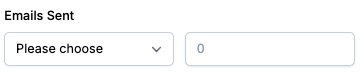
Lets you target leads based on how many emails they’ve received. Choose from:
More than
More than or equal to
Less than
Less than or equal to
Then enter a number. For example, to find people who’ve received at least 3 emails, use “More than or equal to” and enter “3”.
Opens
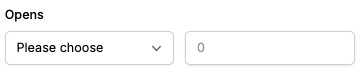
Dropdown functions the same as Step 5, filters how many times a lead has opened your emails.
Replies
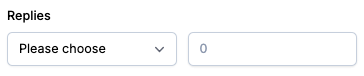
Dropdown functions the same as Step 5 and 6, filters based on the number of replies received from each lead. This is especially helpful if you want to exclude people who already responded.
Custom Tags
Use this filter to segment leads by predefined or manually added tags. Common examples include:

Interested
Meeting Booked
Outlook
Zoho
Custom Mail Server
Proofpoint
Tags can reflect engagement, email client, or any other lead characteristic relevant to your workflow.
